How to Fix Invalid Sim iPhone Errors for Better Connectivity
8/14/2026
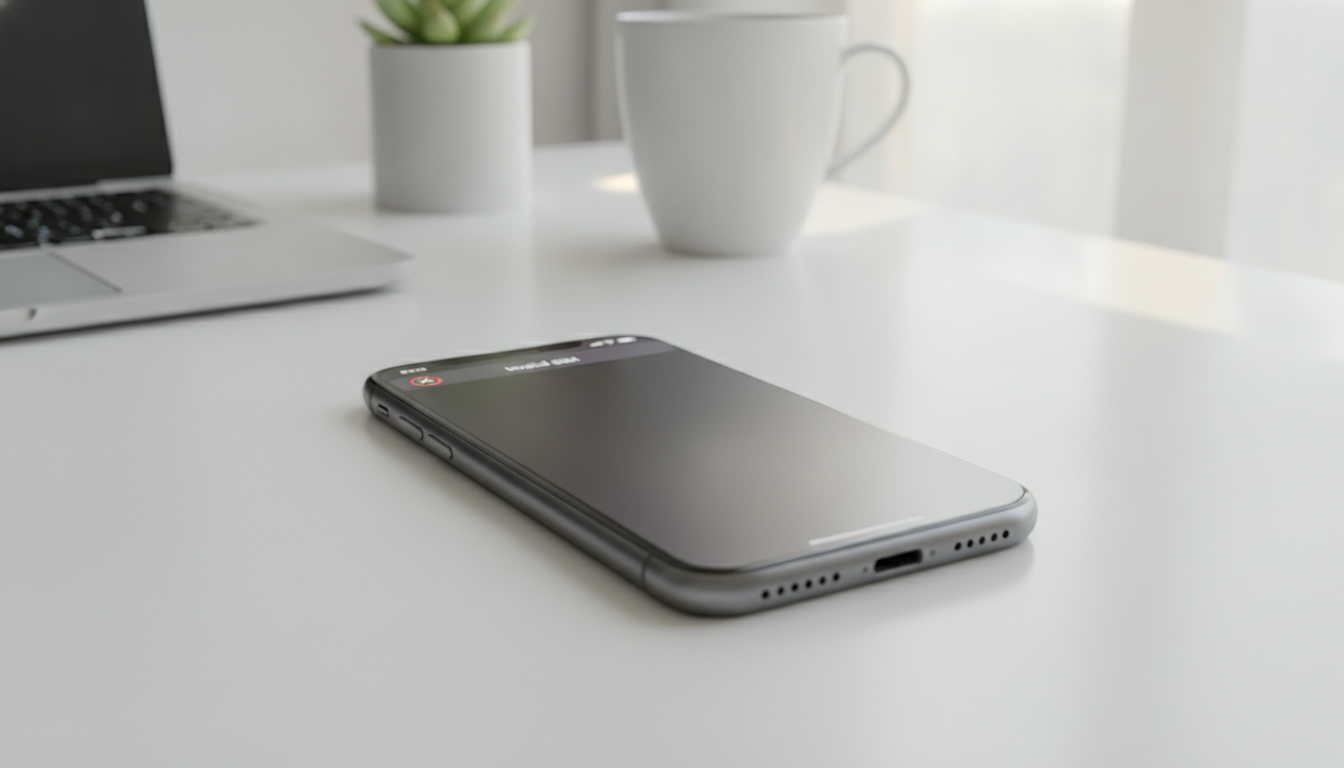
In short, what you'll discover in this article: Understand why your iPhone shows an invalid SIM message and learn quick, practical steps to fix it. From simple restarts to carrier checks, get clear guidance to restore your phone’s connectivity fast and avoid unnecessary stress.
1. Introduction — What Does "Invalid SIM" Mean on iPhone and Why It Matters
When your iPhone displays an invalid SIM iPhone message, it means the device is not recognizing the SIM card properly. This error can disrupt calls, texts, and mobile data, making your phone unreliable for daily use.
Understanding why this happens is crucial because the cause could range from a simple software glitch to hardware damage or carrier issues. Fixing it quickly ensures you stay connected without losing important contacts or messages.
2. Quick Checks (Immediate Actions to Try)
2.1 Restart Your iPhone and Toggle Airplane Mode
Restarting your iPhone often resolves temporary glitches causing the invalid SIM message. Simply power off your device, wait a few seconds, then turn it back on.
Additionally, toggling Airplane Mode on and off can reset cellular connections:
- Swipe down (or up) to access Control Center.
- Tap the Airplane Mode icon to enable it.
- Wait 10 seconds, then tap again to disable.
This refreshes network settings and may clear the error.
2.2 Remove and Reinsert the SIM Card — Check Orientation and Tray Condition
Carefully eject the SIM card tray using a SIM ejector tool or paperclip. Inspect the SIM card for dirt or damage and ensure it’s correctly seated in the tray before reinserting.
Also, verify that the tray itself is not bent or broken, as this can prevent proper contact with the phone’s internal reader.
2.3 Test the SIM Card in Another Phone and Try Another SIM in Your iPhone
To isolate whether the problem lies with your SIM card or iPhone:
- Insert your SIM card into a different unlocked phone. If it works there, the issue likely involves your iPhone.
- Conversely, try a different valid SIM card in your iPhone. If that also shows an invalid SIM message, your device might be at fault.
These tests help pinpoint if you need carrier assistance or hardware repair.
3. Diagnosing the Type of Error
3.1 Differences Between "Invalid SIM," "No SIM," "SIM Not Supported," and SIM Locked
- Invalid SIM: The phone detects a SIM but cannot read it properly.
- No SIM: No SIM card is detected at all.
- SIM Not Supported: The inserted SIM is from an unsupported carrier or region.
- SIM Locked: The SIM requires a PIN or unlock code before use.
Knowing these distinctions guides you toward appropriate fixes.
3.2 Check IMEI, ICCID, and Carrier Information
Go to Settings > General > About to view your iPhone’s IMEI number and ICCID (SIM identifier). Confirm that these details appear correctly; missing or incorrect info may indicate hardware issues or carrier lock problems.
4. Software Solutions
4.1 Update iOS and Restart
Apple regularly releases updates fixing bugs related to cellular connectivity. Ensure your iPhone runs the latest iOS version by going to Settings > General > Software Update.
After updating, restart your device to apply changes.
4.2 Reset Network Settings
Resetting network settings can resolve misconfigurations causing invalid SIM errors:
- Navigate to Settings > General > Reset > Reset Network Settings.
- Enter your passcode when prompted.
- Note: This will erase saved Wi-Fi passwords and VPN settings.
4.3 Remove/Reinstall eSIM and Manage Dual-SIM Profiles
If you use an eSIM or dual-SIM setup, removing and reinstalling profiles can help:
- Go to Settings > Cellular.
- Select the eSIM profile showing issues.
- Tap Remove Cellular Plan, then add it back using your carrier’s QR code or activation method.
For travelers interested in eSIM options in Brazil, check out how to get eSIM in Brazil for activation guides.
4.4 Restore iPhone (Backup, Restore, DFU Mode) — When to Consider It
If software fixes fail:
- Back up your data via iCloud or computer.
- Restore your iPhone using Finder (macOS) or iTunes (Windows).
- As a last resort, enter DFU mode for a deep restore.
This process can fix corrupted system files causing persistent invalid SIM errors but should be done carefully.
5. Hardware Solutions and Repair
5.1 Clean the SIM Tray; Check Card and Slot Condition
Dust or debris in the SIM slot can block proper contact:
- Use a soft brush or compressed air gently on the tray area.
- Inspect for corrosion or physical damage on both card and slot.
5.2 Signs of Hardware Failure (Ribbon Cable, Connector) and Tests
If cleaning doesn’t help, hardware components like the SIM connector ribbon cable might be damaged:
- Symptoms include intermittent recognition or no detection despite multiple cards.
- Professional diagnostic tools are required for confirmation.
5.3 When to Contact Apple Store or Authorized Repair Center
If you suspect hardware failure after all troubleshooting:
- Visit an Apple Store or authorized repair center.
- They can run diagnostics and repair internal components safely.
6. Carrier Issues and Network Compatibility
6.1 Unactivated SIM, Porting in Progress, Carrier/Band Incompatibility
Sometimes carriers delay activation or porting processes cause temporary invalid SIM messages. Also, some carriers’ bands may not be supported by certain iPhone models.
6.2 Steps with Your Carrier (Activation, Replacement, Unlocking)
Contact your carrier if:
- Your SIM isn’t activated yet.
- You need a replacement due to damage.
- Your phone is locked to another network requiring unlocking procedures.
Carrier support often resolves these issues without needing hardware fixes.
7. Specific Cases and Common Scenarios
7.1 After Repair or Screen Replacement
Repairs involving screen replacements sometimes affect internal connections causing invalid SIM errors temporarily.
7.2 After Water Exposure or Drops
Liquid damage or physical shocks can harm internal components responsible for reading the SIM card.
7.3 Older vs Newer iPhones (Different Behaviors)
Older models may show different error messages than newer ones due to hardware changes; troubleshooting steps vary accordingly.
8. Prevention and Best Practices
8.1 Backup Before Any Manipulations; Keep IMEI/ICCID Info Handy; Choose Correct SIM
Always back up data before troubleshooting steps like resets or restores. Keep track of important identifiers like IMEI/ICCID for carrier support calls and ensure you use compatible SIM cards designed for your iPhone model.
9. Conclusion — Final Checklist Recap
To resolve an invalid SIM message on iPhone, start with simple restarts and checking the physical SIM card condition before moving on to software resets like updating iOS or resetting network settings. Test with other devices to isolate issues between hardware and carrier problems.
If needed, contact your carrier for activation help or visit an Apple Store for repairs. Following these steps helps restore connectivity quickly without unnecessary expenses or stress.
For travelers needing reliable connectivity solutions in Brazil after fixing their phone issues, exploring the best eSIM data plans can keep you online seamlessly with providers like Roamic offering discounts via promo codes such as MYBESTSIM for unlimited plans—an excellent way to stay connected while avoiding roaming fees during trips.
By understanding these causes and solutions thoroughly, you’ll regain full use of your iPhone’s cellular functions confidently and efficiently.
FAQ
Why does my iPhone show an invalid SIM message?
The invalid SIM message appears when your iPhone detects the SIM card but cannot read it properly. This can be caused by software glitches, physical SIM card issues, or carrier restrictions preventing proper recognition.
How can I quickly fix the invalid SIM error on iPhone?
Start by restarting your iPhone and toggling Airplane Mode on and off. Then remove and reinsert the SIM card, ensuring it’s clean and properly seated. These simple steps often resolve temporary connection problems.
What should I do if my SIM works in another phone but not on mine?
If your SIM card works in another device but not your iPhone, the issue likely lies with your iPhone’s hardware or software. Try updating iOS, resetting network settings, or restoring the device before seeking professional repair.
When is it necessary to contact my carrier for invalid SIM issues?
Contact your carrier if your SIM isn’t activated, if you need a replacement, or if your phone is locked to a different network. Carrier support can also help with unlocking or resolving activation delays causing invalid SIM errors.
Can hardware damage cause an invalid SIM message on iPhone?
Yes, hardware problems like a damaged SIM tray, connector ribbon cable, or internal reader can cause this error. If cleaning and software fixes fail, visit an Apple Store or authorized repair center for diagnostics and repairs.

Marina Costa
Marina is a travel writer who has crossed Brazil from Rio to the Amazon. At Brazil eSIM she compares Claro, Vivo and TIM data plans and helps visitors stay online without roaming fees.