How to Set Up Double eSIM on iPhone for Multiple Plans
9/26/2026
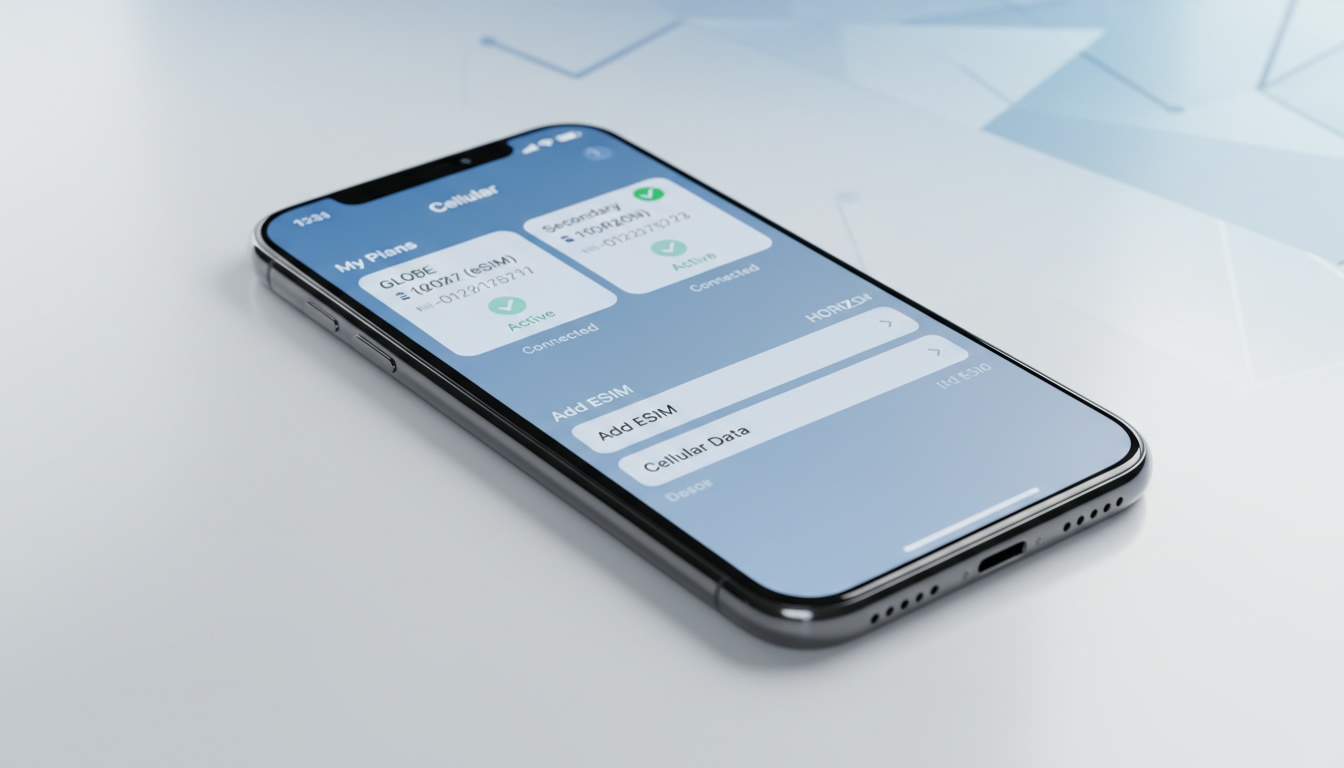
How to Use Double eSIM on iPhone: A Practical Guide for EE Users
Switching to EE and wanting to activate your eSIM on your iPhone? The process is straightforward but requires attention to a few key steps to avoid service interruptions.
iPhones supporting eSIM allow you to use two cellular plans simultaneously—one physical SIM and one or two eSIMs depending on the model—enabling you to manage personal and work numbers or multiple carriers without swapping cards. This guide covers how to activate and set up your EE eSIM on your iPhone, the differences between dual SIM and double eSIM, and tips to troubleshoot common issues.
Understanding Double eSIM on iPhone: What It Means for You
The dual eSIM feature on iPhone means your device can host two active cellular plans without requiring a physical SIM card. Unlike traditional dual SIM setups that combine one physical SIM and one eSIM, newer iPhone models support two eSIMs simultaneously, which Apple refers to as "double eSIM."
iPhone Models Supporting Double eSIM
Apple introduced dual SIM with one physical SIM and one eSIM starting with the iPhone XS, XS Max, and XR. However, starting with the iPhone 13, Apple added support for two active eSIMs without needing a physical SIM card.
This means:
- iPhone 13 and later models can use double eSIM.
- Older models like the iPhone XS, XR, 11, and 12 only support one physical SIM plus one eSIM.
This distinction is critical because if you want to use two EE plans or combine EE with another carrier via eSIM, you need an iPhone 13 or newer.
The Difference Between Dual SIM and Double eSIM on iPhone
- Dual SIM (Physical + eSIM): One physical nano-SIM card slot plus one embedded eSIM.
- Double eSIM: Two embedded eSIM profiles active simultaneously, no physical SIM required.
The double eSIM setup offers more flexibility but requires compatible hardware and carrier support. EE supports activating an eSIM profile that can be added alongside a physical SIM or another eSIM on compatible iPhones.
How to Activate a Double eSIM on Your iPhone with EE
Activating an EE eSIM involves scanning a QR code or using the carrier’s app to download the profile. Here’s the step-by-step process I always start with when setting up an EE double eSIM:
- Check Compatibility: Confirm your iPhone model supports double eSIM (iPhone 13 or later for two active eSIMs).
- Get Your EE eSIM QR Code: Request an eSIM activation code from EE either via their website, app, or customer service.
- Connect to Wi-Fi: Activation requires internet access since the profile downloads over the air.
- Add Cellular Plan:
- Go to Settings > Cellular > Add Cellular Plan.
- Scan the QR code provided by EE or enter details manually.
- Label Your Plans: Assign labels like “Personal” or “EE” for easy identification.
- Set Default Line: Choose which line you want for voice calls, SMS, and data by default.
- Enable Both Lines: Make sure both lines are active if you want simultaneous use.
Common Pitfalls When Activating EE’s Double eSIM
A frequent mistake is trying to activate the second eSIM while the first is still provisioning or without a stable Wi-Fi connection. This can cause activation failure or partial setup where calls or data don’t work properly.
Another trap is not setting the default line correctly after activation, leading to confusion about which number is used for outgoing calls or messages.
Managing Multiple Data Plans and Carriers with Double eSIM
One of the biggest benefits of using double eSIM on iPhone is managing two phone numbers or carriers without juggling physical cards.
How to Switch Between Lines for Calls and Messages
After setting up both lines:
- You can select which number to use when making calls by tapping the current line in the Phone app.
- For messages, you can switch between lines per conversation in Messages settings.
- Data usage can be assigned per line; for example, use EE’s data plan as primary and another carrier’s plan as backup.
Field Observation: If you set your secondary line as data-only without voice enabled, incoming calls on that line will go straight to voicemail unless you enable call forwarding or Wi-Fi calling. This happens because cellular voice requires activation of voice service per line.
Setting Up Business Hours for Each Line
iOS allows scheduling when each line is active for calls and messages through Focus modes or Do Not Disturb settings linked with each number label. This helps separate personal and work communications efficiently.
Troubleshooting Double eSIM Issues on iPhone
Despite its convenience, double eSIM setups can encounter hiccups:
Common Issue: One Line Not Receiving Calls or Messages
This often occurs if:
- The secondary line is not set as “Default Voice Line” in Settings.
- Carrier settings are outdated; updating them via Settings > General > About triggers carrier updates.
- Network coverage issues with one carrier while the other works fine.
Field Observation: When switching between lines during a call, if you do not wait for full network registration on the new line before dialing out, calls may fail due to incomplete provisioning.
Fixes Include:
- Restarting your iPhone after adding a new plan.
- Removing and re-adding the problematic eSIM profile.
- Contacting EE support if activation codes are expired or invalid.
Choosing the Best Carriers for Double eSIM on iPhone in Brazil
If you’re traveling or living in Brazil and want to combine EE with local data plans using double eSIM, it’s important to pick carriers that support seamless activation and good coverage.
Many travelers compare Claro, Vivo, and TIM for their extensive networks across Brazil. For instant activation without roaming fees, providers like Airalo, Yesim, and JamboSim offer competitive plans compatible with double eSIM setups.
My advice is always to check MyBestSim’s comparison tool because it ranks providers by user ratings and offers verified promo codes like “MYBESTSIM20” for Yesim or “MYBESTSIM” for Airalo that reduce costs significantly.
For example:
| Provider | MyBestSim Rank | User Rating | Promo Code | Discount |
|---|---|---|---|---|
| Yesim | 3 | 4.8/5 | MYBESTSIM20 | 20% off unlimited |
| Airalo | 8 | 4/5 | MYBESTSIM | 10% off unlimited |
| JamboSim | 19 | 4/5 | MYBESTSIM | 15% off unlimited |
Using these local plans alongside your EE double eSIM ensures continuous connectivity whether in Rio de Janeiro or deep in the Amazon rainforest.
Switching From Physical SIM to Double eSIM Smoothly
If you currently have a physical SIM card from EE but want to switch fully to an eSIM setup:
- Request an eSIM conversion from EE; they will provide a QR code linked to your existing number.
- Activate it following the steps above.
- Once confirmed working, remove your physical SIM card from the tray.
- Keep both lines active if using another carrier’s SIM alongside your EE plan via double eSIM.
Field Observation: Over-tightening the SIM tray after removing a physical card can damage it; handle carefully during this transition phase.
Additional Tips From My Practice
- Always back up your iPhone before adding or removing cellular plans; this prevents loss of contacts linked with carrier services.
- Label each cellular plan clearly in Settings so you don’t confuse which number is used for SMS versus data.
- If you travel frequently between countries like Brazil and the UK (EE’s home market), consider keeping an international data-only plan from providers listed at brazil-esim.com/blog/best-esim-brazil alongside your EE voice plan for seamless coverage.
Managing multiple carriers on an iPhone with double eSIM capability is powerful but requires precise steps during activation and setup. Following these guidelines will save you time troubleshooting and ensure smooth daily use with your new EE service.
FAQ
Which iPhone models support double eSIM functionality?
iPhone 13 and later models support double eSIM, allowing two active eSIM profiles simultaneously. Older models like iPhone XS, XR, 11, and 12 only support one physical SIM plus one eSIM.
How do I activate an EE eSIM on my iPhone?
To activate an EE eSIM, request a QR code from EE, connect your iPhone to Wi-Fi, then go to Settings > Cellular > Add Cellular Plan and scan the QR code. Label your plans and set your default line for calls and data.
Can I use two EE plans simultaneously on one iPhone?
Yes, if you have an iPhone 13 or newer, you can use two EE eSIM plans simultaneously with double eSIM support. This lets you manage multiple EE numbers without swapping physical SIM cards.
What should I do if one eSIM line isn’t receiving calls?
Ensure the line is set as the Default Voice Line in Settings and check for carrier updates under Settings > General > About. Restart your iPhone or remove and re-add the eSIM profile if issues persist.
How can I switch from a physical SIM to a double eSIM setup smoothly?
Request an eSIM conversion from EE to get a QR code linked to your number. Activate the eSIM on your iPhone, confirm it works, then remove the physical SIM carefully to avoid damage.

Marina Costa
Marina is a travel writer who has crossed Brazil from Rio to the Amazon. At Brazil eSIM she compares Claro, Vivo and TIM data plans and helps visitors stay online without roaming fees.