How to Avoid Data Roaming iPhone Charges in Brazil 2026
8/17/2026
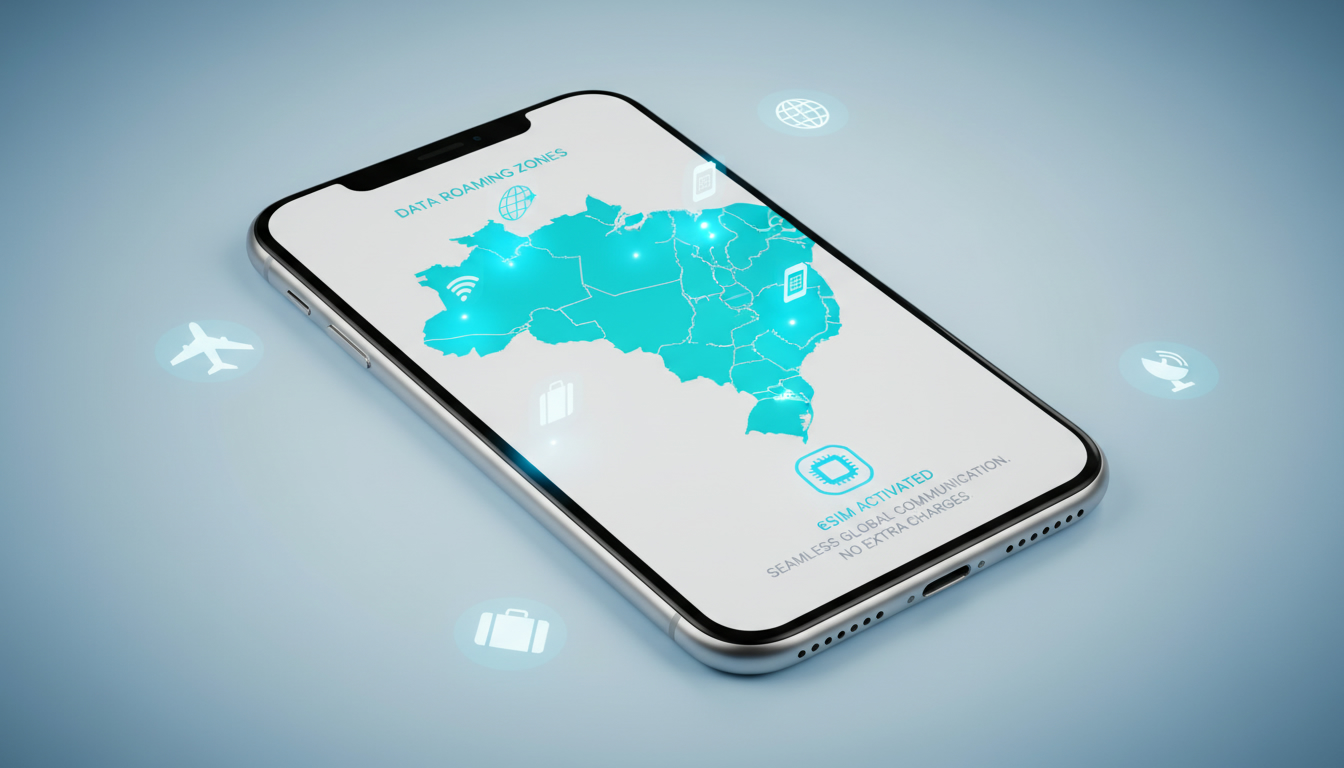
In short, what you'll discover in this article: Learn how to manage the data roaming iPhone settings to avoid surprise charges while traveling in Brazil. We'll cover enabling/disabling roaming, costs, alternatives like eSIM plans, and practical tips to stay connected safely and affordably.
1. Introduction — Why This Guide on Data Roaming iPhone Matters
Traveling abroad with your iPhone can be exciting but also risky if you're not careful with data roaming. Many travelers face unexpected bills because they don’t fully understand how roaming works or how to control it on their iPhones.
This guide will help you confidently manage your iPhone’s data roaming settings, especially for trips to Brazil, so you can stay connected without breaking the bank.
2. What Is Data Roaming (Itinérance des Données)?
2.1 Simple Definition
Data roaming on an iPhone means using cellular data outside your home network, typically when traveling internationally. Your phone connects to a foreign carrier’s network to access the internet, send emails, or use apps.
2.2 Difference Between Voice/SMS Roaming and Data Roaming
Voice and SMS roaming involve calls and text messages sent via foreign networks, while data roaming specifically refers to internet usage through cellular data abroad. Data roaming usually leads to higher charges because it consumes more bandwidth and is billed differently.
3. How to Enable or Disable Data Roaming on iPhone
3.1 Step-by-Step Path in iOS (Settings > Cellular > Cellular Data Options > Data Roaming)
To manage the iPhone data roaming settings, follow these steps:
- Open Settings on your iPhone.
- Tap Cellular (or Mobile Data).
- Select Cellular Data Options.
- Toggle Data Roaming on or off depending on your preference.
Turning it off prevents your phone from using cellular data while abroad, avoiding unexpected fees.
3.2 Variations by iOS Versions and Tips if the Option Is Missing
Some older iOS versions may have slightly different menu names or placements. If you don’t see Data Roaming:
- Ensure your iPhone is updated to the latest iOS version.
- Restart your device.
- Check if your carrier supports roaming on your plan.
- If problems persist, consult Apple Support or your carrier.
4. Costs and Risks of Roaming
4.1 How to Avoid Extra Charges (Example Figures)
Using data roaming without a plan can lead to costly bills—sometimes hundreds of dollars for just a few megabytes of data. For example, some carriers charge per megabyte at rates far above domestic prices.
4.2 Check Your Carrier’s Terms and Use a Simple Cost Calculator
Before traveling, verify roaming fees with your carrier. Many offer daily or monthly international plans that cap costs.
Use online calculators or apps to estimate potential charges based on your expected usage.
5. Alternatives to Limit Fees
5.1 Buy a Local eSIM or Travel Plan
A smart alternative is purchasing an eSIM data plan tailored for Brazil. Providers like Claro, Vivo, and TIM offer competitive coverage with no roaming fees when you use a local eSIM profile.
For travelers seeking the best options, brazil-esim.com/blog/brazil-travel-esim offers comparisons of top eSIM plans that activate instantly and save money.
5.2 Use Wi-Fi and Tethering Wisely
Rely on Wi-Fi hotspots whenever possible and use your phone as a hotspot sparingly to avoid high cellular data usage abroad.
6. Tips to Reduce Data Usage While Roaming
6.1 Modify iOS Settings (Background Data, Auto Updates, Streaming Quality)
To conserve data:
- Disable background app refresh under Settings > General > Background App Refresh.
- Turn off automatic app updates.
- Lower video streaming quality in apps like YouTube or Netflix.
- Use low-data mode in Settings > Cellular > Cellular Data Options.
6.2 Tools and Apps to Monitor Usage
Use built-in tools like the iPhone roaming data usage monitor found in Settings > Cellular, or third-party apps that alert you when you approach limits.
7. Security and Privacy While Roaming
7.1 Use a VPN and Avoid Unsecured Public Networks
Roaming often means connecting through unfamiliar networks which may be insecure. Protect your data by using a trusted VPN service and avoid public Wi-Fi without encryption.
8. Troubleshooting — Common Issues and Solutions
8.1 No Connection While Roaming, SIM Not Recognized, Data Not Activating
If you experience connectivity problems:
- Toggle Airplane Mode on/off.
- Restart your iPhone.
- Remove and reinsert the SIM card.
- Check carrier settings updates under Settings > General > About.
- Confirm roaming is enabled as described earlier.
8.2 When to Contact Your Carrier or Apple Support
If issues persist after troubleshooting, contact your mobile operator or Apple Support for assistance tailored to your device and plan.
9. Advanced Ideas / Differentiating Angles
9.1 iOS Automations for Managing Roaming
You can set up shortcuts or automations in the Shortcuts app to toggle data roaming based on location or time zones automatically.
9.2 Pro Use Cases: Managing Roaming for Businesses
Companies often manage employee devices remotely to control roaming costs using Mobile Device Management (MDM) solutions integrated with iOS features.
10. Checklist Before Traveling Abroad (Actionable Summary)
- Verify your current plan’s international roaming fees.
- Enable/disable data roaming as needed via Settings > Cellular > Cellular Data Options.
- Consider buying a local eSIM plan for Brazil from providers listed at brazil-esim.com/blog/esim-for-brazil-tourist.
- Update your iPhone’s software before departure.
- Set up data-saving settings: disable background refresh, auto-updates.
- Download offline maps and essential apps.
- Install a VPN app for secure browsing abroad.
- Monitor usage regularly with built-in tools or apps.
- Have carrier support contacts handy for emergencies.
11. Conclusion and Useful Resources
Managing data roaming on an iPhone effectively can save you from costly surprises while traveling internationally, especially in Brazil where local eSIM plans offer great alternatives to traditional roaming fees. For detailed eSIM options tailored for tourists, visit brazil-esim.com/blog/how-to-get-esim-in-brazil. Stay connected smartly and enjoy your trip worry-free!
FAQ
How do I enable or disable data roaming on iPhone?
To manage data roaming, go to Settings, tap Cellular, then Cellular Data Options, and toggle Data Roaming on or off. This controls whether your iPhone uses cellular data abroad, helping you avoid unexpected charges.
What are the risks of using data roaming abroad?
Using data roaming without a plan can lead to high charges, sometimes costing hundreds of dollars for minimal data. Roaming fees vary by carrier, so it’s important to check your plan and monitor usage carefully.
Can I use a local eSIM to avoid roaming fees in Brazil?
Yes, buying a local eSIM plan from providers like Claro or Vivo lets you access data without roaming fees. These plans offer competitive rates and instant activation, making them a cost-effective alternative while traveling in Brazil.
How can I reduce data usage while roaming on my iPhone?
You can reduce data use by disabling background app refresh, turning off automatic updates, lowering streaming quality, and enabling low-data mode in Cellular Data Options. These settings help conserve data and limit extra charges.
What should I do if my iPhone won’t connect while roaming?
Try toggling Airplane Mode, restarting your iPhone, reinserting the SIM card, and checking for carrier settings updates. If problems persist, contact your carrier or Apple Support for further assistance.

Marina Costa
Marina is a travel writer who has crossed Brazil from Rio to the Amazon. At Brazil eSIM she compares Claro, Vivo and TIM data plans and helps visitors stay online without roaming fees.